> ## Documentation Index
> Fetch the complete documentation index at: https://moengage.com/docs/llms.txt
> Use this file to discover all available pages before exploring further.
# Olo
> Learn how to integrate Olo with MoEngage using Olo's self-service webhook framework to sync restaurant guest data and power personalized, lifecycle-driven campaigns.
# Introduction
[Olo](https://www.olo.com/) is a restaurant technology platform for multi-unit restaurant brands. Through its self-service webhook framework, Olo emits near-real-time event data — including orders, guest sign-ups, and opt-in preferences — that you can stream directly into MoEngage to power personalized, lifecycle-driven campaigns.
# MoEngage × Olo
The integration of MoEngage and Olo enables restaurant brands to unify their guest data and activate it across every owned channel. With this integration, you can:
* Ingest order events (placed, cancelled, picked up) as MoEngage behavioral events in near real time.
* Sync guest sign-up and opt-in data to create and enrich MoEngage user profiles.
* Capture loyalty check-ins and vendor-level events for advanced segmentation.
* Trigger personalized campaigns immediately after an order is placed or a guest churns.
## Use Cases
Integrating Olo with MoEngage helps you solve the following use cases:
* **Re-order campaigns**: Trigger personalized push or email campaigns when a guest's last order crosses a defined recency threshold.
* **New guest onboarding**: Welcome guests who sign up via Olo ordering flows and deliver first-order incentive campaigns.
* **Win-back lapsed guests**: Identify users with no **Order Placed** events in 30+ days and serve re-engagement campaigns with relevant offers.
* **Order milestone rewards**: Detect guests reaching their 5th or 10th lifetime order and trigger loyalty reward messages automatically.
* **Post-purchase feedback**: Send automated review prompts or satisfaction surveys within minutes of an **Order Picked Up** event.
The following table outlines some of the Olo webhook events. Additional events can be configured based on your use case.
| Olo Event Type | Description |
| ---------------- | -------------------------------------------------------------------------------------------- |
| `UserSignedUp` | Guest signs up via Olo. Profile attributes and subscription preferences are captured. |
| `OrderPlaced` | Guest places an order. Basket contents, location, totals, and delivery method are captured. |
| `OrderCancelled` | Guest cancels an order. Used in win-back flows and order analysis. |
| `OrderPickedUp` | Guest collects their order. Triggers post-purchase flows. |
| `GuestOptIn` | Guest updates their communication preferences. Email and SMS subscription state is captured. |
**Before You Begin**
Olo allows only one Destination URL per brand environment. All event types are routed to the same MoEngage endpoint and differentiated using the `X-Olo-Event-Type` header.
**Prerequisites**
Ensure you have the following before proceeding:
* **Brand Manager** permission (or higher) with access to **Dev Tools > Webhooks** in the Olo Dashboard.
* Your MoEngage **Workspace ID** and **Data API Key**, available under **Settings > Account > APIs**.
## Step 1: Get Your MoEngage Endpoint
MoEngage provides a dedicated webhook ingestion endpoint for this integration. You will use this URL as the **Destination URL** in the Olo webhook configuration.
The MoEngage endpoint follows this format:
```text wrap theme={null}
https://api-0X.moengage.com/v1/partner/olo/{events|user}/?configName={config_name}
```
## Step 2: Configure the Webhook in the Olo Dashboard
To set up a webhook in Olo, perform the following steps:
1. Click **Add Webhook** in the top-right corner.
 3. In the **Webhook Name** field, enter a descriptive name, for example: `MoEngage {{Your Workspace Name}}`.
4. In the **Destination URL** field, paste the MoEngage endpoint URL from Step 1.
5. In the **Developer Partner** dropdown, select **MoEngage** from the list of approved partners.
6. Under **Headers**, add an `Authorization` header. To generate its value, use a [Basic Auth Header Generator tool](https://www.debugbear.com/basic-auth-header-generator) with your MoEngage **Workspace ID** as the username and your **Data API Key** as the password.
* Navigate to **Settings > Account > APIs** in MoEngage to find your credentials.
* Copy the ID under **Workspace ID** (**earlier app id**).
* Copy the **Data** value under **API keys**.
* Your token combines both values. For example: `Basic Qk5CR1NNNUR4eHh4eHhWQ1hSRFJEWTdSOlFsWHVoTHVaeHh4eHh4QWQrQnBYUEotNw==`
* **Note**: Copy the token completely without extra spaces.
7. Under the **Order Events** and **User Events** sections, enable the event types you want to forward to MoEngage.
3. In the **Webhook Name** field, enter a descriptive name, for example: `MoEngage {{Your Workspace Name}}`.
4. In the **Destination URL** field, paste the MoEngage endpoint URL from Step 1.
5. In the **Developer Partner** dropdown, select **MoEngage** from the list of approved partners.
6. Under **Headers**, add an `Authorization` header. To generate its value, use a [Basic Auth Header Generator tool](https://www.debugbear.com/basic-auth-header-generator) with your MoEngage **Workspace ID** as the username and your **Data API Key** as the password.
* Navigate to **Settings > Account > APIs** in MoEngage to find your credentials.
* Copy the ID under **Workspace ID** (**earlier app id**).
* Copy the **Data** value under **API keys**.
* Your token combines both values. For example: `Basic Qk5CR1NNNUR4eHh4eHhWQ1hSRFJEWTdSOlFsWHVoTHVaeHh4eHh4QWQrQnBYUEotNw==`
* **Note**: Copy the token completely without extra spaces.
7. Under the **Order Events** and **User Events** sections, enable the event types you want to forward to MoEngage.
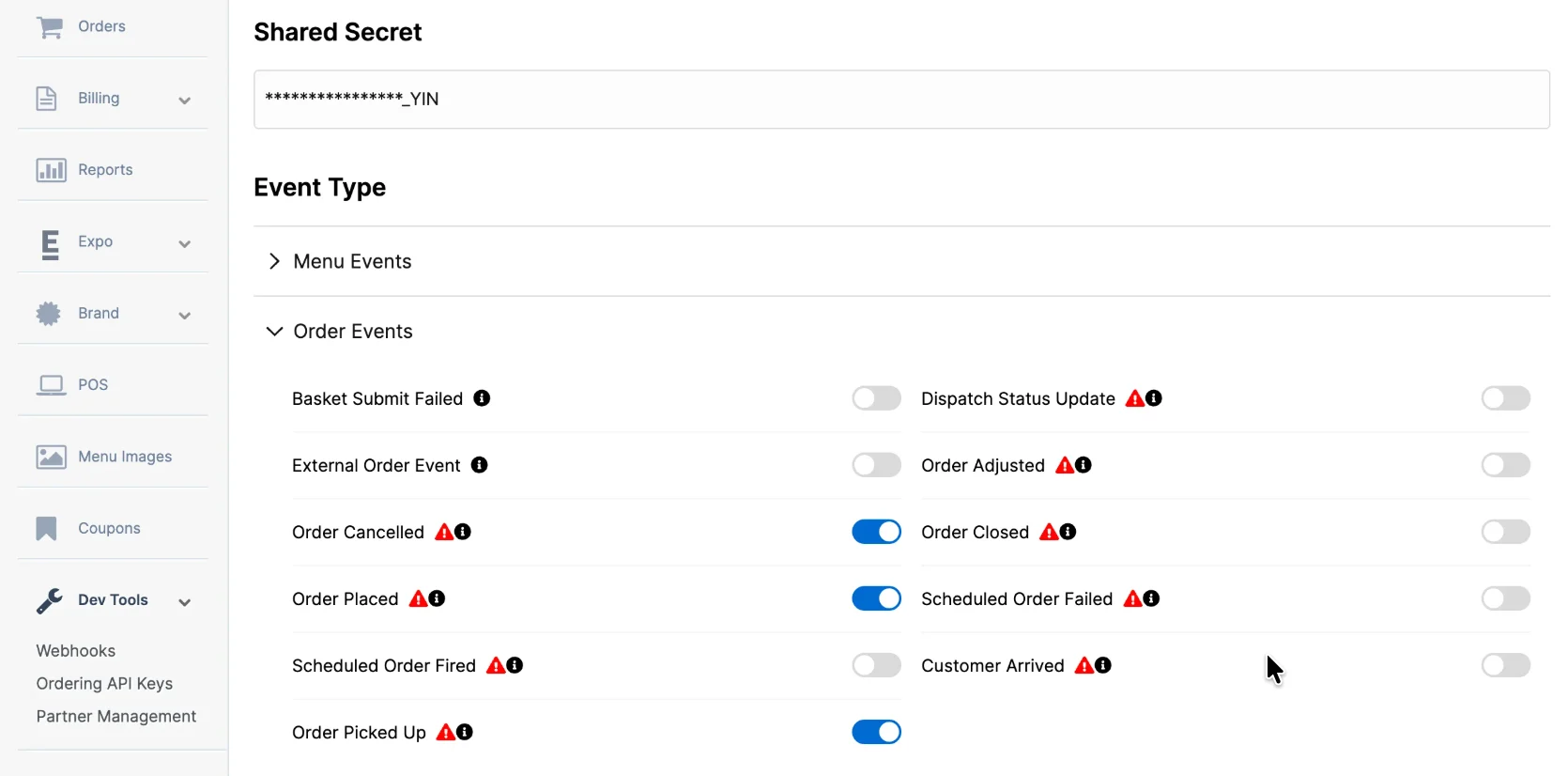 8. After selecting events, click **Test Webhook** to send a test payload to your MoEngage endpoint.
**Shared Secret**
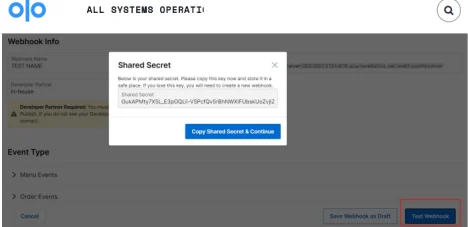
During the webhook creation flow, Olo displays a 64-character **Shared Secret**. This is used to compute the `X-Olo-Signature` header for payload verification. Copy and store it securely — Olo displays it only once. Provide this value to your MoEngage contact to configure.
8. After selecting events, click **Test Webhook** to send a test payload to your MoEngage endpoint.
**Shared Secret**
During the webhook creation flow, Olo displays a 64-character **Shared Secret**. This is used to compute the `X-Olo-Signature` header for payload verification. Copy and store it securely — Olo displays it only once. Provide this value to your MoEngage contact to configure.
 **Test Event Required**
Olo requires a successful response from the test event before the webhook can be published. This is a mandatory gate — the **Publish Webhook** button will remain inactive until a `200` response is received from the MoEngage endpoint.
If the test fails, verify your Destination URL and Authorization header before retrying.
9. Once the test succeeds, click Publish Webhook to activate.
**Unique Identifier (Customer ID)**
MoEngage uses Olo's `customerId` as the unique identifier. This value is immutable, ensuring accurate profile resolution and preventing duplicates. To use a different identifier, contact the MoEngage team before configuring your webhook.
## Rate Limits and Reliability
| Topic | Details |
| -------------------- | -------------------------------------------------------------------------------------------------------------------------------------------------------------------------------------------------------------------- |
| **Rate Limits** | MoEngage limits ingestion of Olo webhook data to a maximum of **500 requests per second (RPS)** per workspace. If your workspace exceeds this limit, MoEngage returns an HTTP `429 (Too Many Requests)` status code. |
| **Retries** | Olo's built-in retry policy handles `429` and `5xx` responses automatically, retrying up to **50 times over a 24-hour period** before dropping the request. |
| **Retry Exhaustion** | If Olo exhausts all retry attempts, contact Olo Developer Support at [developersupport@olo.com](mailto:developersupport@olo.com) to replay the failed requests. |
| **Deduplication** | Olo guarantees at-least-once delivery, meaning the same event may be received more than once under retry conditions. MoEngage uses the `X-Olo-Message-Id` header to deduplicate incoming events automatically. |
**Test Event Required**
Olo requires a successful response from the test event before the webhook can be published. This is a mandatory gate — the **Publish Webhook** button will remain inactive until a `200` response is received from the MoEngage endpoint.
If the test fails, verify your Destination URL and Authorization header before retrying.
9. Once the test succeeds, click Publish Webhook to activate.
**Unique Identifier (Customer ID)**
MoEngage uses Olo's `customerId` as the unique identifier. This value is immutable, ensuring accurate profile resolution and preventing duplicates. To use a different identifier, contact the MoEngage team before configuring your webhook.
## Rate Limits and Reliability
| Topic | Details |
| -------------------- | -------------------------------------------------------------------------------------------------------------------------------------------------------------------------------------------------------------------- |
| **Rate Limits** | MoEngage limits ingestion of Olo webhook data to a maximum of **500 requests per second (RPS)** per workspace. If your workspace exceeds this limit, MoEngage returns an HTTP `429 (Too Many Requests)` status code. |
| **Retries** | Olo's built-in retry policy handles `429` and `5xx` responses automatically, retrying up to **50 times over a 24-hour period** before dropping the request. |
| **Retry Exhaustion** | If Olo exhausts all retry attempts, contact Olo Developer Support at [developersupport@olo.com](mailto:developersupport@olo.com) to replay the failed requests. |
| **Deduplication** | Olo guarantees at-least-once delivery, meaning the same event may be received more than once under retry conditions. MoEngage uses the `X-Olo-Message-Id` header to deduplicate incoming events automatically. |