> ## Documentation Index
> Fetch the complete documentation index at: https://moengage.com/docs/llms.txt
> Use this file to discover all available pages before exploring further.
# Twilio Segment Engage
# Introduction
The Twilio Segment integration does not currently support [Unified Identity (Identity Resolution)](https://moengage-user-guide.mintlify.app/user-guide/data/user-data/unified-identity-identity-resolution) or [Portfolio](https://moengage-user-guide.mintlify.app/user-guide/settings/account/portfolio/portfolio).
[Twilio Segment ](https://segment.com/) is a customer data platform that helps you collect, clean, and activate your customer data.
This article will give an overview of the connection between MoEngage and Twilio Segment Engage (earlier Segment Personas) and list a step-by-step approach to enabling the integration.
# Scope
The MoEngage and Twilio Segment integration allows you to use [Engage](https://segment.com/docs/personas/), Twilio Segment built-in audience builder, to create segments of users based on data you have already collected across various sources. These users will then be assigned user attributes or custom events that can be used to create MoEngage segments for use in MoEngage campaigns and flows.
# Integration
* Login credentials for MoEngage and Segment.
* Segment Engage must be enabled for your segment account. You can validate this by navigating to Engage from the sidebar on your Segment dashboard.
[Computed traits](https://segment.com/docs/personas/computed-traits/) and [audiences](https://segment.com/docs/personas/audiences/) can be sent to MoEngage as custom attributes or custom events.
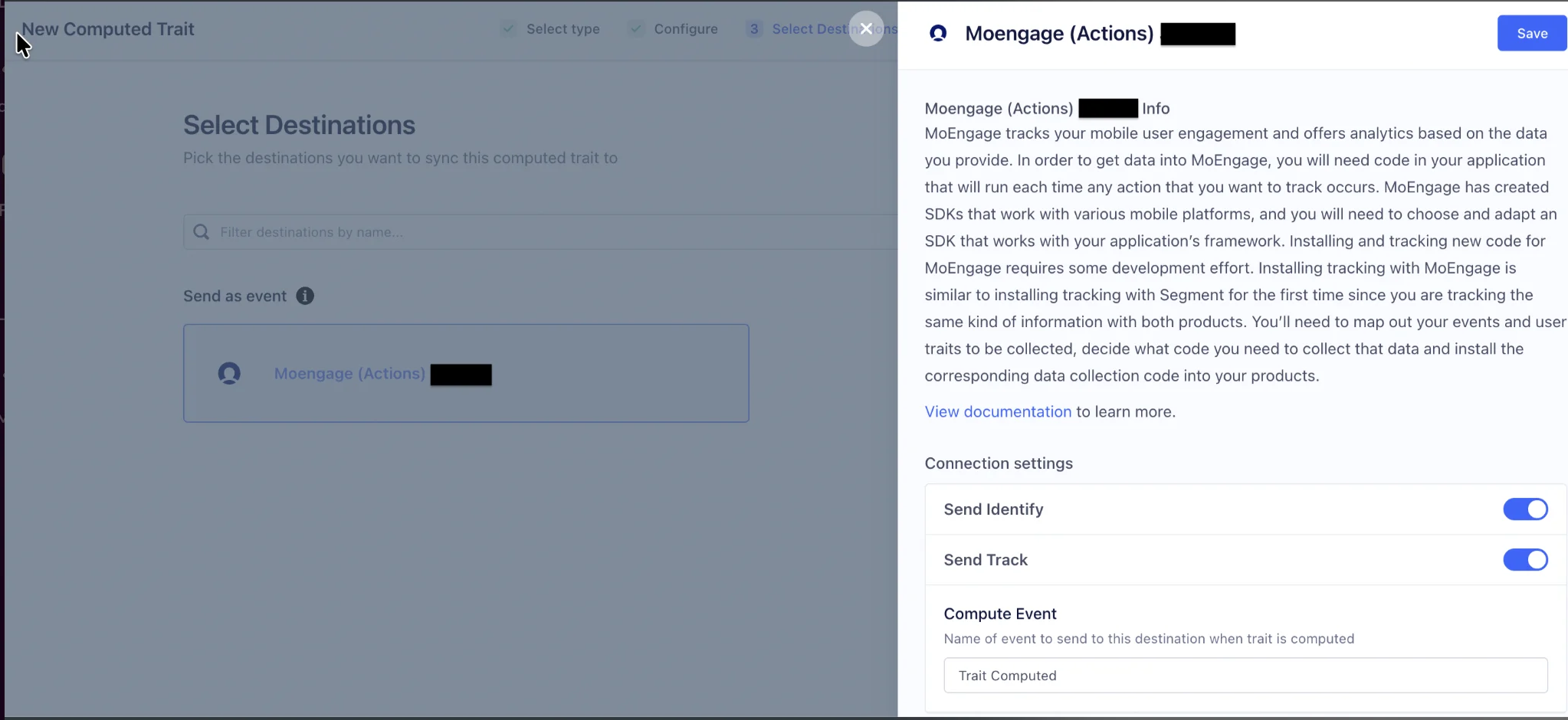
* Traits and audiences sent using the *identify* call will appear in MoEngage as *Tracked Custom Attributes* with a value of *True.*
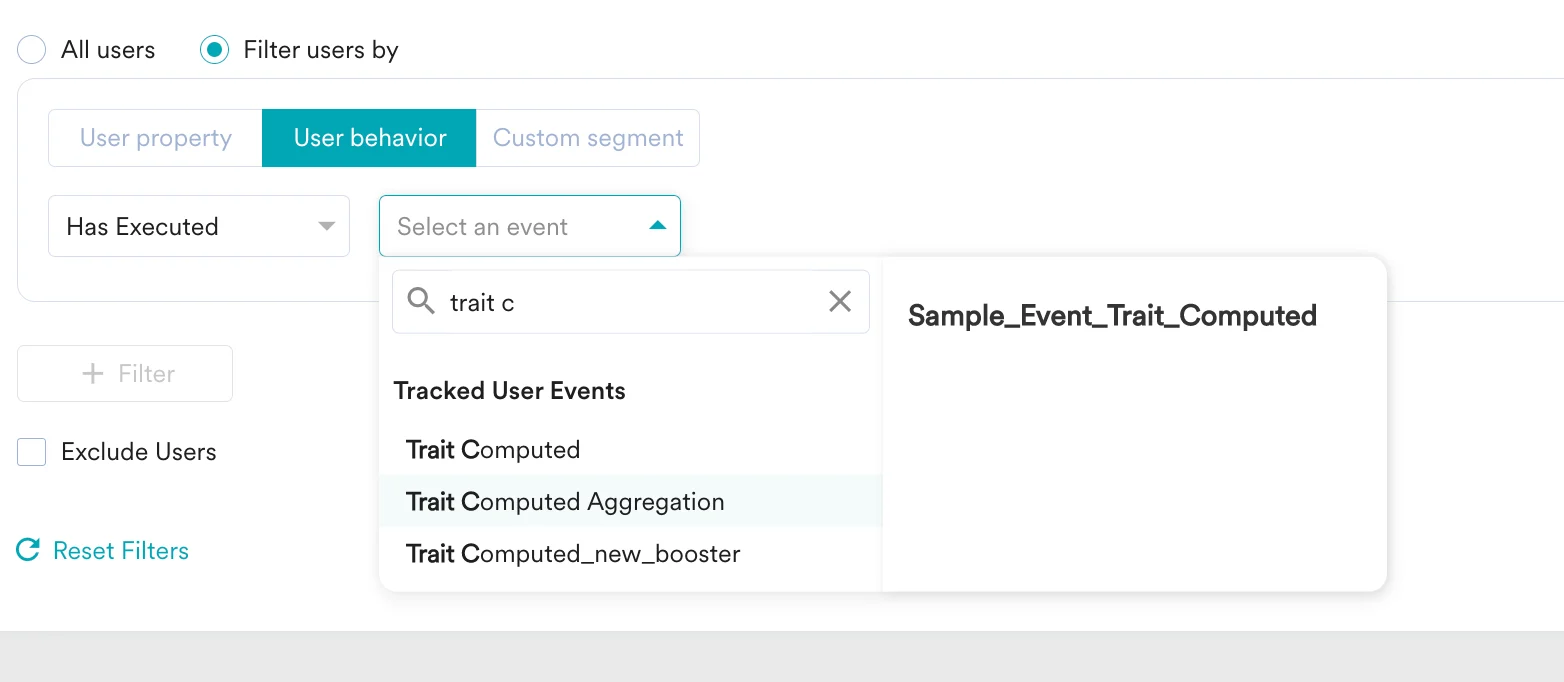
* Traits and audiences sent using the *track* call will appear in MoEngage as *Tracked User Events*.
When you connect the computed trait/audience to the MoEngage destination, you can choose your preferred method (or choose to use both).
## Sync time
The default integration for the MoEngage × Segment Engage connection is **Real Time.** But there are some filters that will disqualify the persona from syncing in real-time, including some time-based filters that restrict your audience’s size at the time of message send.
## Step 1: Create a Segment computed trait/audience
### Computed Trait
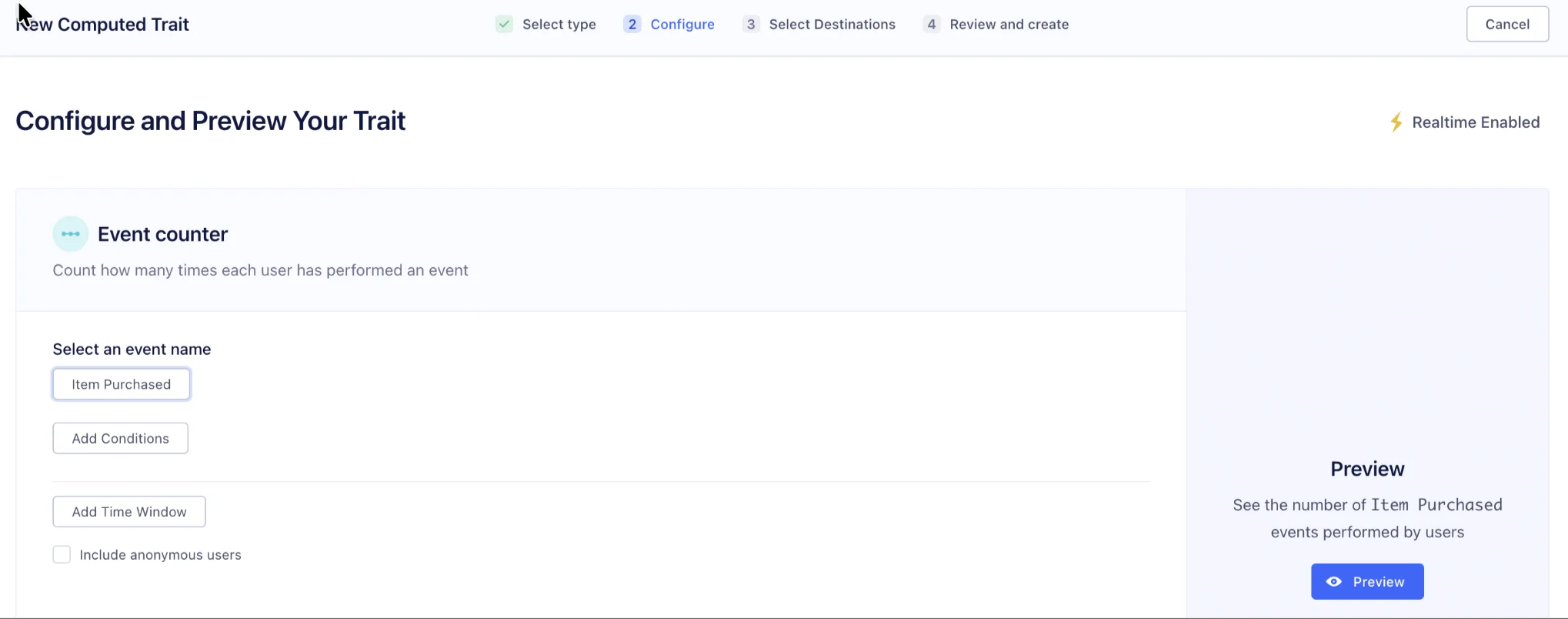
1. In Segment, navigate to the *Computed Traits* in *Engage.*
2. Click *New Computed Trait.*
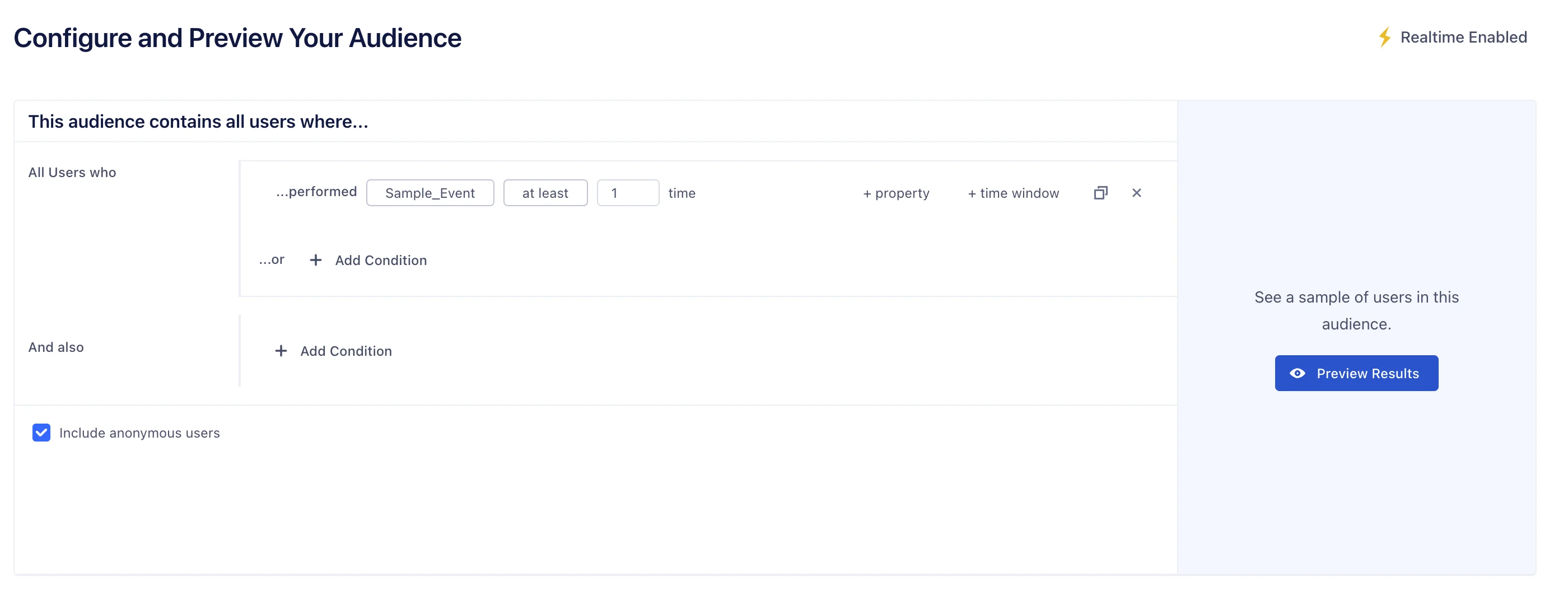
3. Create your computed trait or audience. A lightning bolt in the top corner of the page will indicate if the computation updates in real-time.
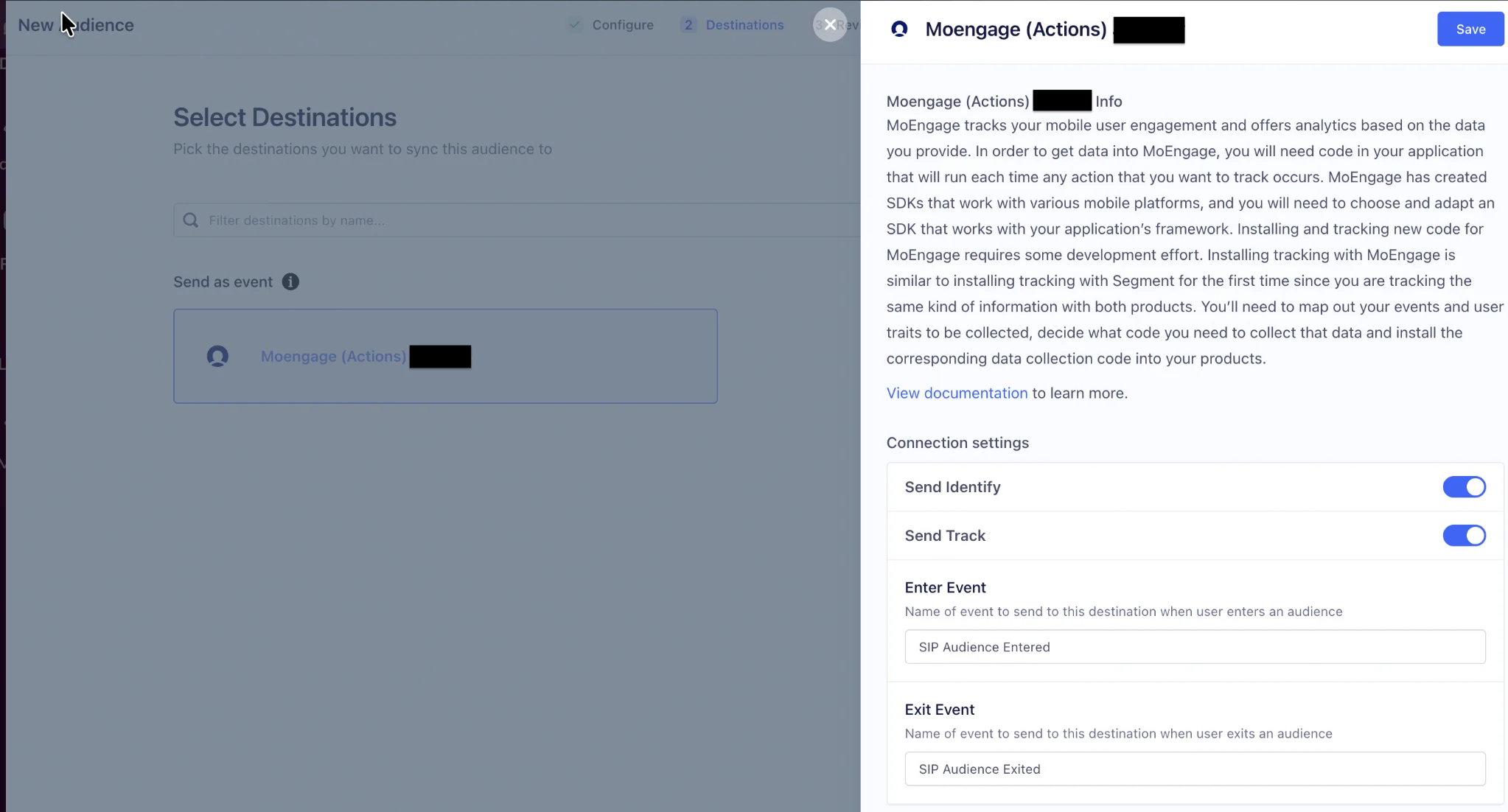
 4. Next, select *MoEngage* as your destination.
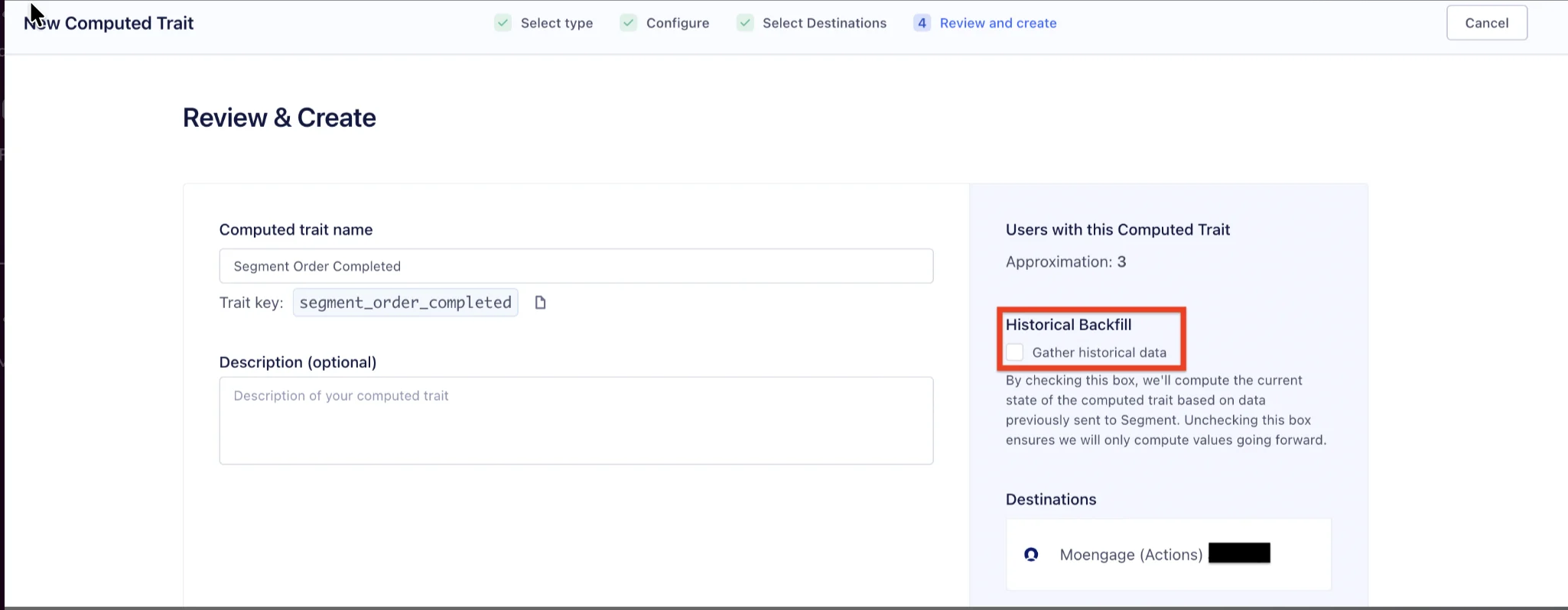
 5. Preview by clicking *Review & Create*.\
*Note-* By default, Segment queries all historical data to set the current value of the computed trait and audience. To omit this data, uncheck *Historical Backfill*.
5. Preview by clicking *Review & Create*.\
*Note-* By default, Segment queries all historical data to set the current value of the computed trait and audience. To omit this data, uncheck *Historical Backfill*.
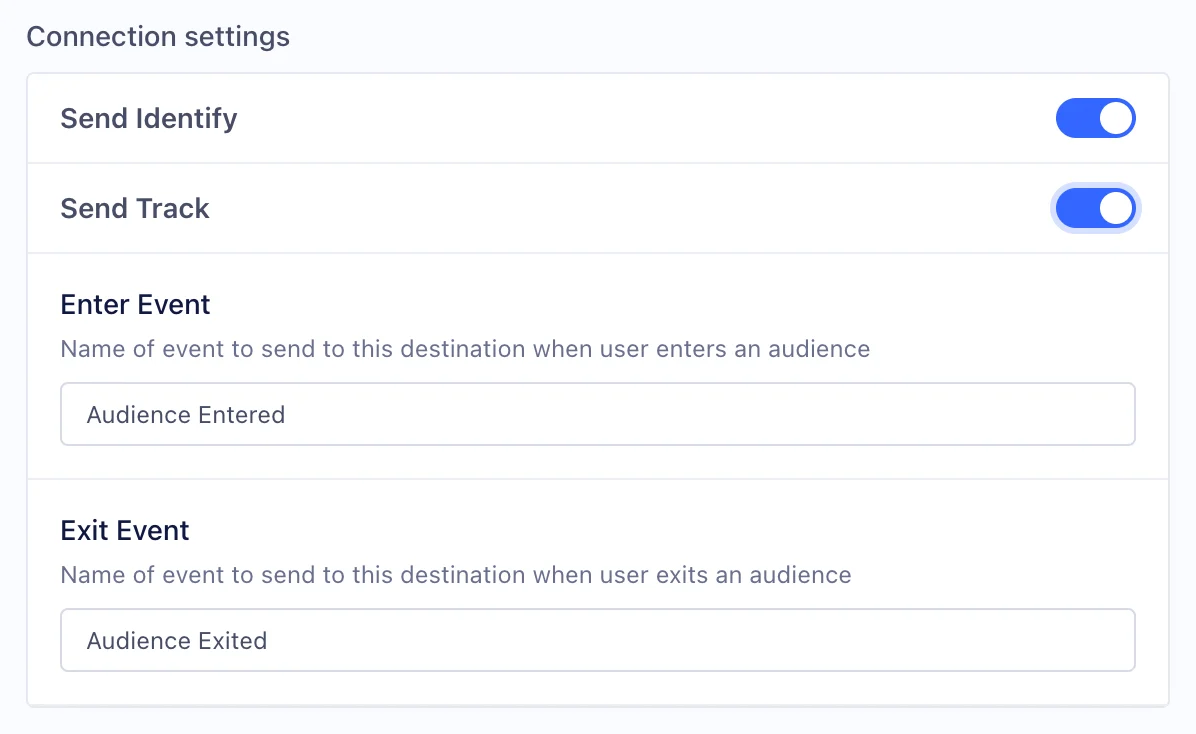
 6. In the computed trait, adjust the connection settings based on how you would like your data sent to MoEngage.
### Audience
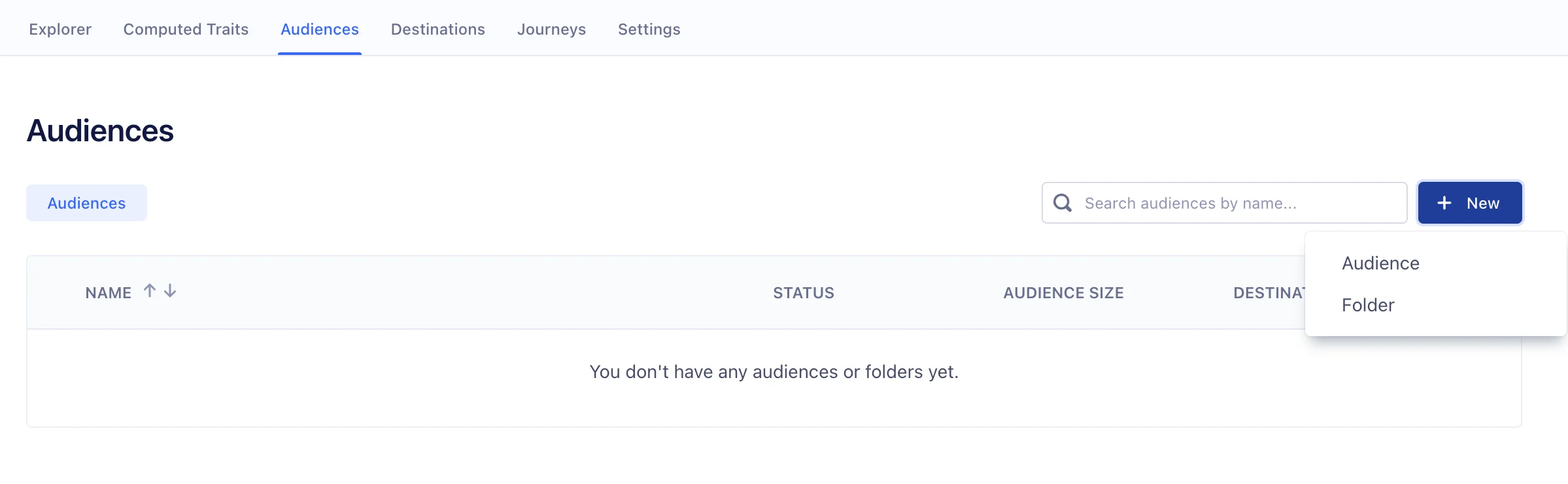
1. In Segment, navigate to the *Audience* in *Engage.*
2. Click New.
6. In the computed trait, adjust the connection settings based on how you would like your data sent to MoEngage.
### Audience
1. In Segment, navigate to the *Audience* in *Engage.*
2. Click New.
 3. Create your audience. A lightning bolt in the top corner of the page will indicate if the computation updates in real-time.
 4. Next, select *MoEngage* as your destination.
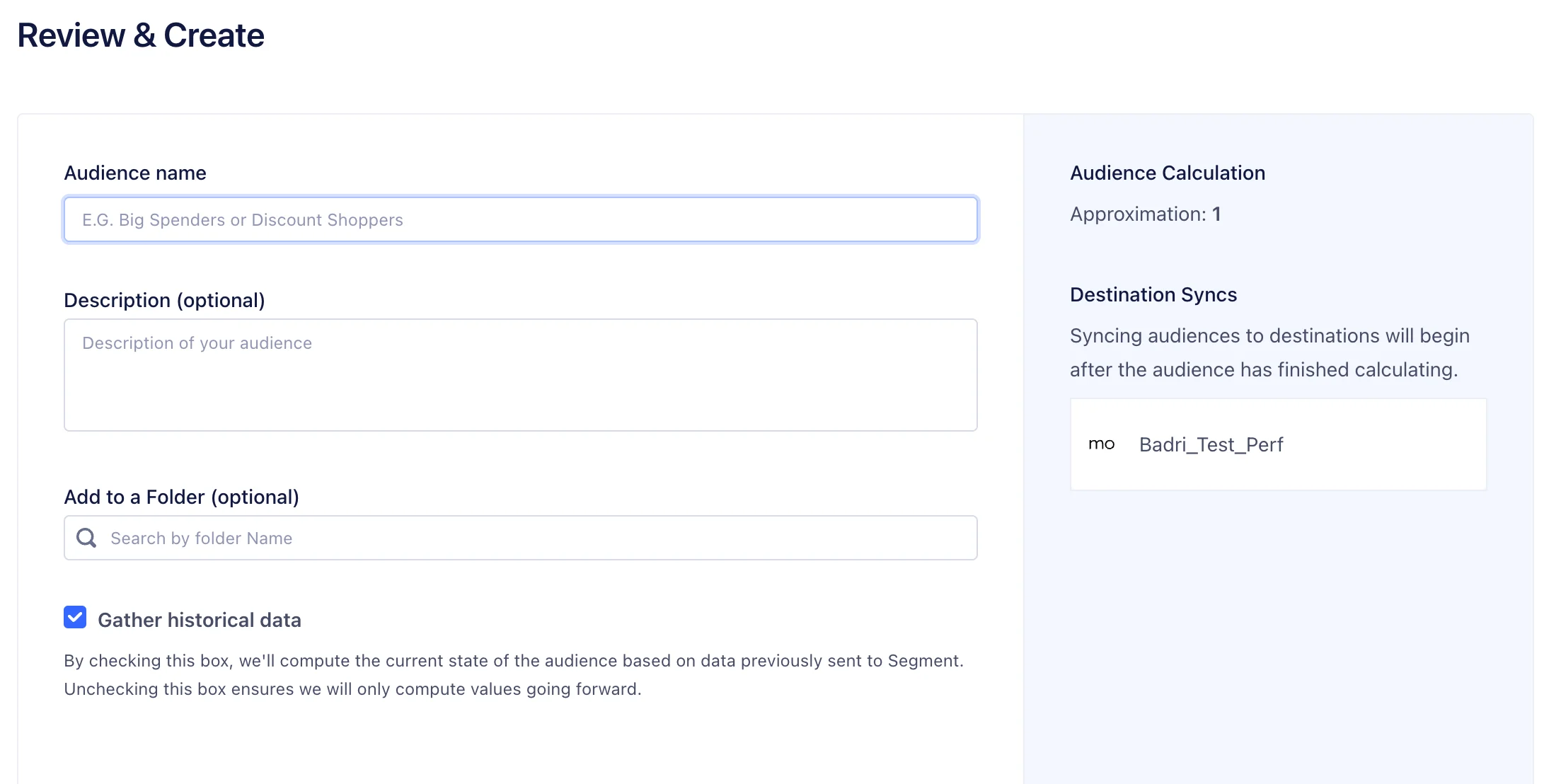
 5. Preview your audience by clicking *Review & Create*.\
*Note-* By default, Segment queries all historical data to set the current value of the audience. To omit this data, uncheck *Historical Backfill*.
5. Preview your audience by clicking *Review & Create*.\
*Note-* By default, Segment queries all historical data to set the current value of the audience. To omit this data, uncheck *Historical Backfill*.
 6. In the computed trait or audience settings, adjust the connection settings based on how you would like your data sent to MoEngage.
 ## Step 2: Segment users in MoEngage
To create a segment of these users, navigate to *Segments >> Create Segment.* Next, based on which call you used:
* **Identify** : Select *User Property* and select the specific attribute.
## Step 2: Segment users in MoEngage
To create a segment of these users, navigate to *Segments >> Create Segment.* Next, based on which call you used:
* **Identify** : Select *User Property* and select the specific attribute.
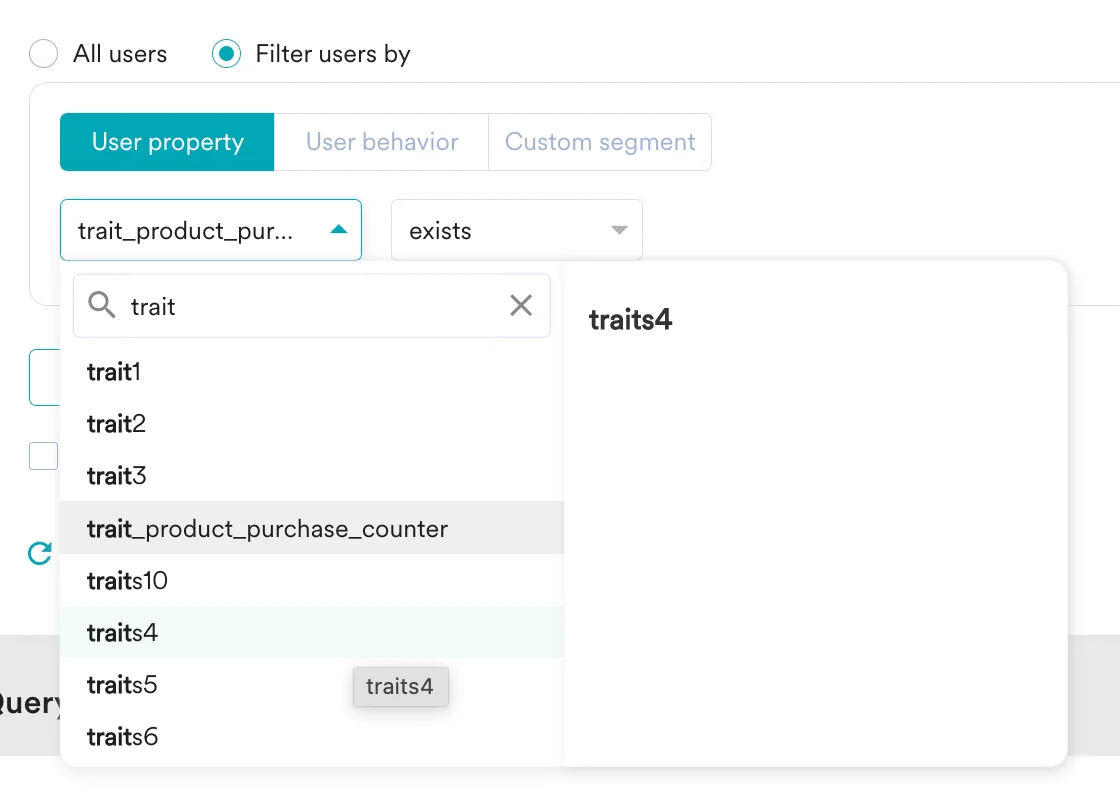 * **Track** : Select *User Behaviour* and select the specific event.