> ## Documentation Index
> Fetch the complete documentation index at: https://moengage.com/docs/llms.txt
> Use this file to discover all available pages before exploring further.
# Documentation Access to Agents
> Access MoEngage documentation in formats suited for AI agents, LLMs, and automation tools.
Use the options below to give AI coding assistants and language models access to MoEngage documentation with less overhead than loading full HTML pages.
## Quick start
* **AI coding assistants (Claude Code, Cursor, etc):** Use the [MoEngage Docs MCP server](https://www.moengage.com/docs/mcp) for the best experience. It lets your assistant search and fetch documentation from within the IDE.
* **Chat interfaces (ChatGPT, Claude.ai):** Add `.md` to any docs page URL and share it in your conversation to get plain markdown instead of the full site.
* **Project rules and custom instructions:** Add MoEngage's [llms.txt](https://www.moengage.com/docs/llms.txt) URL to your AI tool’s rules so it has an index of relevant MoEngage pages.
* **Agent capabilities:** Use the [skill.md](https://www.moengage.com/docs/skill.md) URL or `npx skills add https://www.moengage.com/docs` so agents know what they can do with MoEngage and what inputs or constraints apply.
## MCP server
The [MoEngage Docs MCP server](https://www.moengage.com/docs/mcp) gives AI agents and coding assistants direct access to MoEngage documentation and references through the Model Context Protocol. Use it to bring MoEngage knowledge into tools like Claude, Cursor, and other MCP-compatible clients.
The MoEngage Docs MCP (Model Context Protocol) server connects your AI agents to MoEngage’s docs and developer resources. Configure the MoEngage Docs MCP server in your IDE or AI chat to get in-context help for your MoEngage integration.
For more on the Model Context Protocol, see the [MCP documentation](https://modelcontextprotocol.io/introduction).
If your AI agent supports MCP, you can add the MoEngage MCP server so it has access to MoEngage’s APIs and SDKs. The MoEngage MCP server lets you:
* Get quick answers about MoEngage APIs, features, and implementation
* Search documentation without leaving your editor
* Find code samples and recommended patterns for typical use cases
* Debug issues using docs and SDK references
* Write code that integrates your app with MoEngage
## Installation
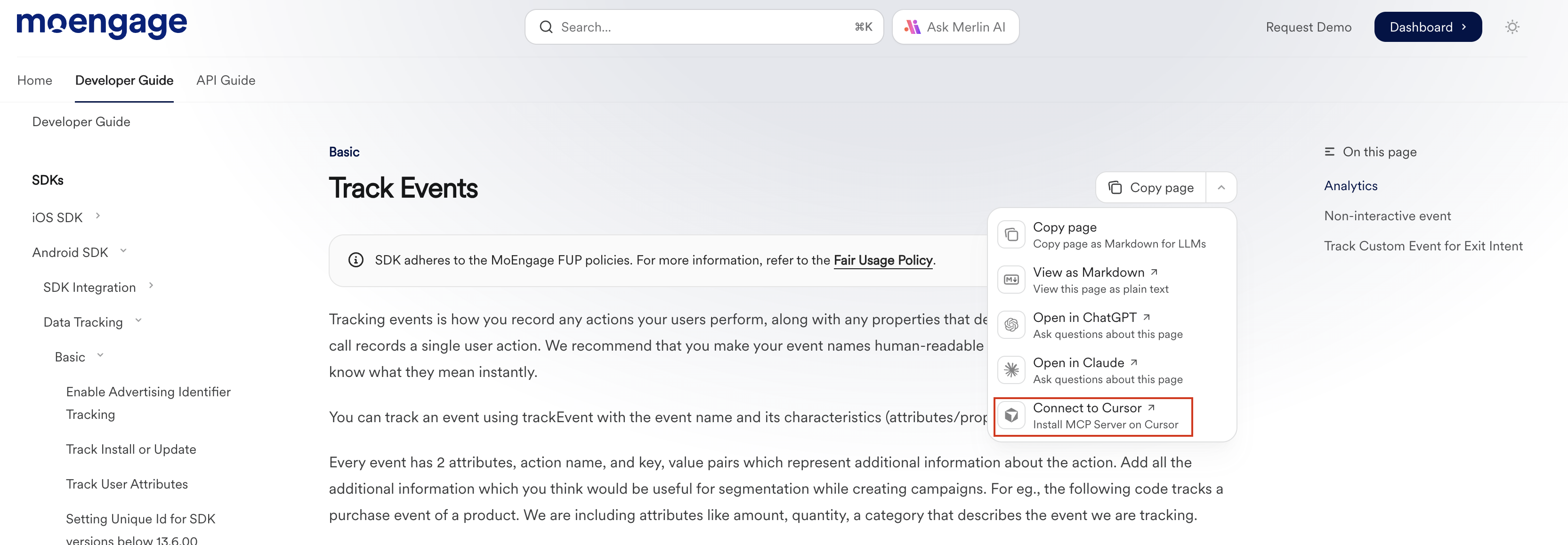
To set up the MoEngage MCP server, use the contextual menu on any page and click **Connect**.
 Alternatively, you can pick your IDE or AI chat provider and follow the steps below.
1. Open **Cursor** and open the `.cursor` directory in your project root. Create it if it doesn’t exist. This is where Cursor’s project configuration lives.
2. Open the `mcp.json` file in `.cursor`. Create it if it doesn’t exist. This file holds MCP server configuration for the project.
3. Add the following to `mcp.json`:
```json mcp.json theme={null}
{
"mcpServers": {
"MoEngage Docs": {
"url": "https://www.moengage.com/docs/mcp"
}
}
}
```
4. Save the file.
5. Restart Cursor.
Claude Desktop uses `npm` to run the MoEngage MCP server. You need **Node.js** installed. See [Node.js downloads](https://nodejs.org/en/download/) for details.
1. Open **Claude Desktop**.
2. Go to **File > Settings** (Windows) or **Settings** (macOS).
3. Open the **Developer** tab.
4. Click **Edit Config**.
5. Open `claude_desktop_config.json`. This file controls MCP servers for Claude Desktop.
6. Add the following to `claude_desktop_config.json`:
```json claude_desktop_config.json theme={null}
{
"mcpServers": {
"moengage-docs": {
"command": "npx",
"args": ["-y", "mcp-remote", "https://www.moengage.com/docs/mcp"]
}
}
}
```
7. Save the file.
8. Restart Claude Desktop.
Remote MCP in Claude Desktop is currently in beta.
### Enterprise and team plans
1. Open **Claude Desktop**.
2. Go to **Admin settings > Connectors**.
3. Scroll to the bottom of the section.
4. Click **Add custom connector**.
5. Fill in:
* **Name**: MoEngage MCP
* **Remote MCP server URL**: `https://www.moengage.com/docs/mcp`
6. Click **Add**.
### Pro and max plans
1. Open **Claude Desktop**.
2. Go to **Settings > Connectors**.
3. Scroll to the bottom of the section.
4. Click **Add custom connector**.
5. Fill in:
* **Name**: MoEngage MCP
* **Remote MCP server URL**: `https://www.moengage.com/docs/mcp`
6. Click **Add**.
Run the following command in your terminal:
```bash theme={null}
claude mcp add --transport http MoEngage-docs https://www.moengage.com/docs/mcp
```
1. Create a `.vscode/mcp.json` file with the following content:
```json mcp.json theme={null}
{
"servers": {
"MoEngage Docs": {
"type": "http",
"url": "https://www.moengage.com/docs/mcp"
}
}
}
```
2. Save the file.
3. Restart VS Code.
## Usage
The MoEngage MCP exposes the following tool:
* **`search_mo_engage`** — Searches MoEngage’s documentation and knowledge base. Use it to find guides, API details, code examples, and implementation notes. Results include titles and links to the relevant docs.
## Per-page markdown
Append `.md` to any docs page URL to get a markdown version of that page. You get content only, without HTML, nav, or scripts, which uses fewer tokens than the full page.
For example, for the [API Reference introduction](/api-reference/introduction) in markdown, use:
```txt theme={null}
https://www.moengage.com/docs/api-reference/introduction.md
```
## Site-wide endpoints
These endpoints follow the [llms.txt standard](https://llmstxt.org/). You can use these endpoints for markdown-formatted content.
| Endpoint | Description | Size |
| --------------------------------------------------------------- | ----------------------------------------------------------------------- | ------ |
| [`/llms.txt`](https://www.moengage.com/docs/llms.txt) | Page index with short descriptions for the whole site | Varies |
| [`/llms-full.txt`](https://www.moengage.com/docs/llms-full.txt) | Full content of all pages. Prefer section-level endpoints when possible | Large |
## skill.md
The `skill.md` file describes what AI agents can do with MoEngage in a structured, machine-readable format. It makes capabilities, required inputs, and constraints explicit so agents can use your product more reliably.
**URL:** [https://www.moengage.com/docs/skill.md](https://www.moengage.com/docs/skill.md)
The file follows the [skill.md specification](https://agentskills.io/specification) and is kept in sync with the documentation so agents stay aligned with current MoEngage features and APIs.
`llms.txt` and `skill.md` both help agents use MoEngage documentation, but they do different things.
* **`llms.txt`** is a directory: it lists documentation pages with descriptions so agents know where to look.
* **`skill.md`** is a capability summary: it describes what agents can accomplish with your product, what inputs they need, and what constraints apply.
### Using skill.md with agents
Agents can load MoEngage’s capabilities into their context with the [skills CLI](https://www.npmjs.com/package/skills):
```bash theme={null}
npx skills add https://www.moengage.com/docs
```
This adds MoEngage’s skill description to the agent so it can take actions on behalf of users (e.g. answering integration questions or suggesting API usage).
Use the `skill.md` URL or the command above in your own AI setup so you get better, more accurate assistance when working with MoEngage.
### What’s in skill.md
The MoEngage `skill.md` file is generated from the documentation and typically includes:
* **Metadata** — Product name, description, and version.
* **Capabilities** — What agents can do with MoEngage (e.g. campaigns, segments, SDK integration).
* **Skills** — Concrete actions grouped by area (APIs, SDKs, data, etc.).
* **Workflows** — Step-by-step procedures for common tasks.
* **Integration** — Supported tools and services.
* **Context** — High-level overview of MoEngage documentation and concepts.
For the exact schema and fields, see the [agentskills.io specification](https://agentskills.io/specification).
Alternatively, you can pick your IDE or AI chat provider and follow the steps below.
1. Open **Cursor** and open the `.cursor` directory in your project root. Create it if it doesn’t exist. This is where Cursor’s project configuration lives.
2. Open the `mcp.json` file in `.cursor`. Create it if it doesn’t exist. This file holds MCP server configuration for the project.
3. Add the following to `mcp.json`:
```json mcp.json theme={null}
{
"mcpServers": {
"MoEngage Docs": {
"url": "https://www.moengage.com/docs/mcp"
}
}
}
```
4. Save the file.
5. Restart Cursor.
Claude Desktop uses `npm` to run the MoEngage MCP server. You need **Node.js** installed. See [Node.js downloads](https://nodejs.org/en/download/) for details.
1. Open **Claude Desktop**.
2. Go to **File > Settings** (Windows) or **Settings** (macOS).
3. Open the **Developer** tab.
4. Click **Edit Config**.
5. Open `claude_desktop_config.json`. This file controls MCP servers for Claude Desktop.
6. Add the following to `claude_desktop_config.json`:
```json claude_desktop_config.json theme={null}
{
"mcpServers": {
"moengage-docs": {
"command": "npx",
"args": ["-y", "mcp-remote", "https://www.moengage.com/docs/mcp"]
}
}
}
```
7. Save the file.
8. Restart Claude Desktop.
Remote MCP in Claude Desktop is currently in beta.
### Enterprise and team plans
1. Open **Claude Desktop**.
2. Go to **Admin settings > Connectors**.
3. Scroll to the bottom of the section.
4. Click **Add custom connector**.
5. Fill in:
* **Name**: MoEngage MCP
* **Remote MCP server URL**: `https://www.moengage.com/docs/mcp`
6. Click **Add**.
### Pro and max plans
1. Open **Claude Desktop**.
2. Go to **Settings > Connectors**.
3. Scroll to the bottom of the section.
4. Click **Add custom connector**.
5. Fill in:
* **Name**: MoEngage MCP
* **Remote MCP server URL**: `https://www.moengage.com/docs/mcp`
6. Click **Add**.
Run the following command in your terminal:
```bash theme={null}
claude mcp add --transport http MoEngage-docs https://www.moengage.com/docs/mcp
```
1. Create a `.vscode/mcp.json` file with the following content:
```json mcp.json theme={null}
{
"servers": {
"MoEngage Docs": {
"type": "http",
"url": "https://www.moengage.com/docs/mcp"
}
}
}
```
2. Save the file.
3. Restart VS Code.
## Usage
The MoEngage MCP exposes the following tool:
* **`search_mo_engage`** — Searches MoEngage’s documentation and knowledge base. Use it to find guides, API details, code examples, and implementation notes. Results include titles and links to the relevant docs.
## Per-page markdown
Append `.md` to any docs page URL to get a markdown version of that page. You get content only, without HTML, nav, or scripts, which uses fewer tokens than the full page.
For example, for the [API Reference introduction](/api-reference/introduction) in markdown, use:
```txt theme={null}
https://www.moengage.com/docs/api-reference/introduction.md
```
## Site-wide endpoints
These endpoints follow the [llms.txt standard](https://llmstxt.org/). You can use these endpoints for markdown-formatted content.
| Endpoint | Description | Size |
| --------------------------------------------------------------- | ----------------------------------------------------------------------- | ------ |
| [`/llms.txt`](https://www.moengage.com/docs/llms.txt) | Page index with short descriptions for the whole site | Varies |
| [`/llms-full.txt`](https://www.moengage.com/docs/llms-full.txt) | Full content of all pages. Prefer section-level endpoints when possible | Large |
## skill.md
The `skill.md` file describes what AI agents can do with MoEngage in a structured, machine-readable format. It makes capabilities, required inputs, and constraints explicit so agents can use your product more reliably.
**URL:** [https://www.moengage.com/docs/skill.md](https://www.moengage.com/docs/skill.md)
The file follows the [skill.md specification](https://agentskills.io/specification) and is kept in sync with the documentation so agents stay aligned with current MoEngage features and APIs.
`llms.txt` and `skill.md` both help agents use MoEngage documentation, but they do different things.
* **`llms.txt`** is a directory: it lists documentation pages with descriptions so agents know where to look.
* **`skill.md`** is a capability summary: it describes what agents can accomplish with your product, what inputs they need, and what constraints apply.
### Using skill.md with agents
Agents can load MoEngage’s capabilities into their context with the [skills CLI](https://www.npmjs.com/package/skills):
```bash theme={null}
npx skills add https://www.moengage.com/docs
```
This adds MoEngage’s skill description to the agent so it can take actions on behalf of users (e.g. answering integration questions or suggesting API usage).
Use the `skill.md` URL or the command above in your own AI setup so you get better, more accurate assistance when working with MoEngage.
### What’s in skill.md
The MoEngage `skill.md` file is generated from the documentation and typically includes:
* **Metadata** — Product name, description, and version.
* **Capabilities** — What agents can do with MoEngage (e.g. campaigns, segments, SDK integration).
* **Skills** — Concrete actions grouped by area (APIs, SDKs, data, etc.).
* **Workflows** — Step-by-step procedures for common tasks.
* **Integration** — Supported tools and services.
* **Context** — High-level overview of MoEngage documentation and concepts.
For the exact schema and fields, see the [agentskills.io specification](https://agentskills.io/specification).