> ## Documentation Index
> Fetch the complete documentation index at: https://moengage.com/docs/llms.txt
> Use this file to discover all available pages before exploring further.
# iOS SDK Initialization
> Initialize the MoEngage SDK in your Unity project's iOS configuration file with your workspace ID.
# Include MoEngage Configuration
After importing the MoEngage package, add a **MoEngage-Info.plist** file to your `Assets` folder (`Asset > Import New Asset`).
Starting from Unity SDK Core 6.0.0 version, support for `MoEngageConfiguration.h` is removed. You must migrate to `MoEngage-Info.plist` for SDK configuration.
In your `MoEngage-Info.plist`, set the workspace ID, region, and other configuration values:
```xml XML theme={null}
APPLICATION_ID
YOUR_WORKSPACE_ID
DATA_CENTER
DATA_CENTER_01
ENABLE_LOGS
UNITY_CONTROLLER_SWIZZLING_ENABLED
ANALYTICS_PERIODIC_FLUSH_DURATION
60
ANALYTICS_DISABLE_PERIODIC_FLUSH
STORAGE_ENCRYPTION_ENABLED
KEYCHAIN_GROUP_NAME
NETWORK_ENCRYPTION_ENABLED
SHOULD_PROVIDE_DEEPLINK_CALLBACK
```
Set `SHOULD_PROVIDE_DEEPLINK_CALLBACK` to `true` if your app handles deeplink routing manually instead of letting the SDK handle navigation.
# Unity App Controller Swizzling
There are two approaches using which the SDK can be initialized:
1. **Unity App Controller Subclass:**\
SDK contains the `MoEUnityAppController` class which is the subclass of UnityAppController. Here we get a callback on AppLaunch to initialize MoEngage SDK.
2. **UnityAppController swizzling:**\
Set `UNITY_CONTROLLER_SWIZZLING_ENABLED` to `true` in `MoEngage-Info.plist` to enable UnityAppController swizzling. Here `application:didfinishLaunchinWithOptions:` method is swizzled to initialize MoEngage SDK.
UnityAppController swizzling (2nd approach) will be required if your project has multiple implementations of UnityAppController subclasses (1st approach), here the subclass defined in the plugin might not work reliably because here only one of the subclasses in the project will get the callbacks.
# Build and Replace
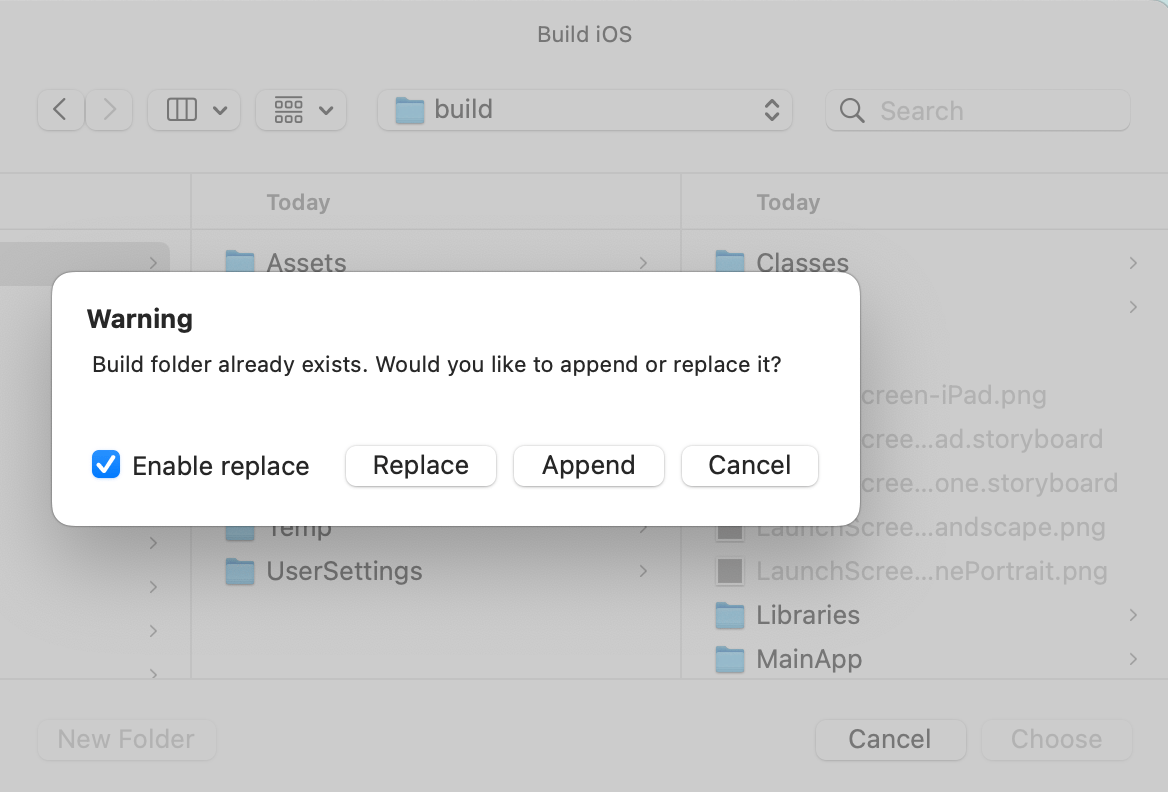
Once required packages are imported go to `File > Build Settings`, switch to iOS platform, and click on `Build`. Select `Replace` in the pop-up. It's necessary to select **Replace** on first-time integration, this is because we will be updating the build settings of the Xcode project for MoEngage SDK and also installing the native dependencies.
 ## CocoaPods
Make sure [CocoaPods](https://cocoapods.org/) is installed in your system before proceeding.
The SDK uses CocoaPods by default to manage native iOS dependencies. After building from Unity, open `Unity-iPhone.xcworkspace` in Xcode to run the app.
## Swift Package Manager
As an alternative to CocoaPods, you can use Swift Package Manager (SPM) to manage the MoEngage iOS dependency:
1. In Xcode, go to **File → Add Package Dependencies**.
2. Enter the MoEngage iOS SDK repository URL and select the required version.
3. Add the `MoEngageSDK` package to the `Unity-iPhone` target.
4. Remove the generated `Podfile` and close the `.xcworkspace`. Open `Unity-iPhone.xcodeproj` directly when using SPM.
## CocoaPods
Make sure [CocoaPods](https://cocoapods.org/) is installed in your system before proceeding.
The SDK uses CocoaPods by default to manage native iOS dependencies. After building from Unity, open `Unity-iPhone.xcworkspace` in Xcode to run the app.
## Swift Package Manager
As an alternative to CocoaPods, you can use Swift Package Manager (SPM) to manage the MoEngage iOS dependency:
1. In Xcode, go to **File → Add Package Dependencies**.
2. Enter the MoEngage iOS SDK repository URL and select the required version.
3. Add the `MoEngageSDK` package to the `Unity-iPhone` target.
4. Remove the generated `Podfile` and close the `.xcworkspace`. Open `Unity-iPhone.xcodeproj` directly when using SPM.