> ## Documentation Index
> Fetch the complete documentation index at: https://moengage.com/docs/llms.txt
> Use this file to discover all available pages before exploring further.
# Configuring Project for Architecture Compatibility
> Configure your Xcode project for arm64 architecture compatibility with MoEngage iOS SDK v10.x.x.
## Overview
**Note**
The changes mentioned in this article are also applied to the CI/CD environment.
Beginning with MoEngage iOS SDK v10.x.x, support for the `x86_64` and `x86` architectures are discontinued. The SDK only supports the `arm64` architecture.
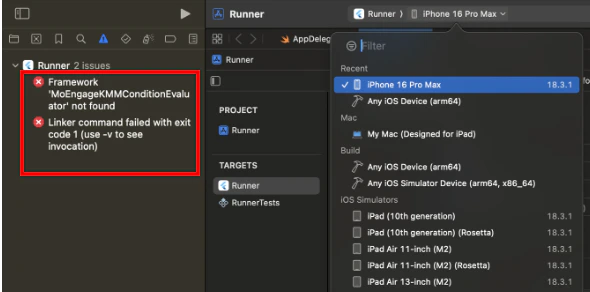
Attempting to build a project for a simulator that runs on x86\_64 architecture used by the [Rosetta](https://developer.apple.com/documentation/apple-silicon/about-the-rosetta-translation-environment) simulator, or a simulator running on an Intel-based Mac (x86\_64), may result in linker errors. This article outlines the procedures for configuring an Xcode project to resolve these errors.
 ## Identify Host Machine Architecture
To determine the correct configuration procedure, identify the development machine's architecture by executing the following command in the terminal:
```shellscript Shell theme={null}
uname -m
```
The command returns one of the following outputs:
* **`arm64`**: An Apple silicon Mac.
* **`x86_64`**: An Intel-based Mac.
## Configuration Procedures
### For Apple silicon Macs (`arm64`)
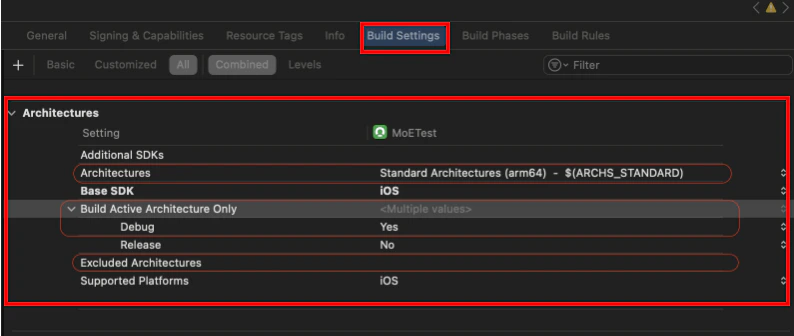
On Apple silicon Macs, linker errors occur if the build targets a [Rosetta](https://developer.apple.com/documentation/apple-silicon/about-the-rosetta-translation-environment) simulator, which runs on the `x86_64` architecture. To prevent this, configure the build to run only on the native simulator (`arm64` architecture) as shown below:
1. In Xcode, select your project in the **Project Navigator**, and perform the steps below for all your targets (including Pods targets).
2. Navigate to the **Build Settings** tab.
3. Apply the following configurations for the `Debug` build:
* **`Excluded Architectures (EXCLUDED_ARCHS)`**
* Ensure this setting does not contain `arm64` for simulator builds.
* **`Build Active Architecture Only (ONLY_ACTIVE_ARCH)`**
* Set this value to **Yes**. This setting directs Xcode to build only for the architecture of the currently selected simulator.
* **Architectures** set to ARCHS\_STANDARD or include arm64.
## Identify Host Machine Architecture
To determine the correct configuration procedure, identify the development machine's architecture by executing the following command in the terminal:
```shellscript Shell theme={null}
uname -m
```
The command returns one of the following outputs:
* **`arm64`**: An Apple silicon Mac.
* **`x86_64`**: An Intel-based Mac.
## Configuration Procedures
### For Apple silicon Macs (`arm64`)
On Apple silicon Macs, linker errors occur if the build targets a [Rosetta](https://developer.apple.com/documentation/apple-silicon/about-the-rosetta-translation-environment) simulator, which runs on the `x86_64` architecture. To prevent this, configure the build to run only on the native simulator (`arm64` architecture) as shown below:
1. In Xcode, select your project in the **Project Navigator**, and perform the steps below for all your targets (including Pods targets).
2. Navigate to the **Build Settings** tab.
3. Apply the following configurations for the `Debug` build:
* **`Excluded Architectures (EXCLUDED_ARCHS)`**
* Ensure this setting does not contain `arm64` for simulator builds.
* **`Build Active Architecture Only (ONLY_ACTIVE_ARCH)`**
* Set this value to **Yes**. This setting directs Xcode to build only for the architecture of the currently selected simulator.
* **Architectures** set to ARCHS\_STANDARD or include arm64.
 ### For Intel-based Macs (`x86_64`)
On Intel-based Macs, the iOS Simulator runs on the `x86_64` architecture. As MoEngage SDK v10.x.x and later do not support this architecture, projects cannot run on the simulator. To build and test the application, use a physical iOS device.
### For Intel-based Macs (`x86_64`)
On Intel-based Macs, the iOS Simulator runs on the `x86_64` architecture. As MoEngage SDK v10.x.x and later do not support this architecture, projects cannot run on the simulator. To build and test the application, use a physical iOS device.