> ## Documentation Index
> Fetch the complete documentation index at: https://moengage.com/docs/llms.txt
> Use this file to discover all available pages before exploring further.
# Validate Your Shopify Integration
> Validate your MoEngage Shopify integration to ensure user events and data are tracked correctly.
After you install MoEngage on your Shopify store, validate the integration to confirm that MoEngage tracks user events and data correctly before you go live with campaigns. This article describes how to verify the SDK load, confirm that key events trigger, and explains what to expect if your store uses a customized Shopify theme or a third-party checkout partner.
## Prerequisites
Before you begin the validation process, ensure you have the following items:
* The [**MoEngage Assist** **extension**](https://chromewebstore.google.com/detail/moengage-sdk/dhggnkfnnoebbfofpimfehcklnekmbgi) is installed in your browser.
* Access to your live Shopify storefront.
* Your MoEngage workspace should be open in a separate tab to cross-check event ingestion.
## Step 1: Verify the MoEngage SDK Load
To verify the SDK load, perform the following steps:
1. Open your Shopify store in a new browser window, or perform a hard refresh on an existing window.
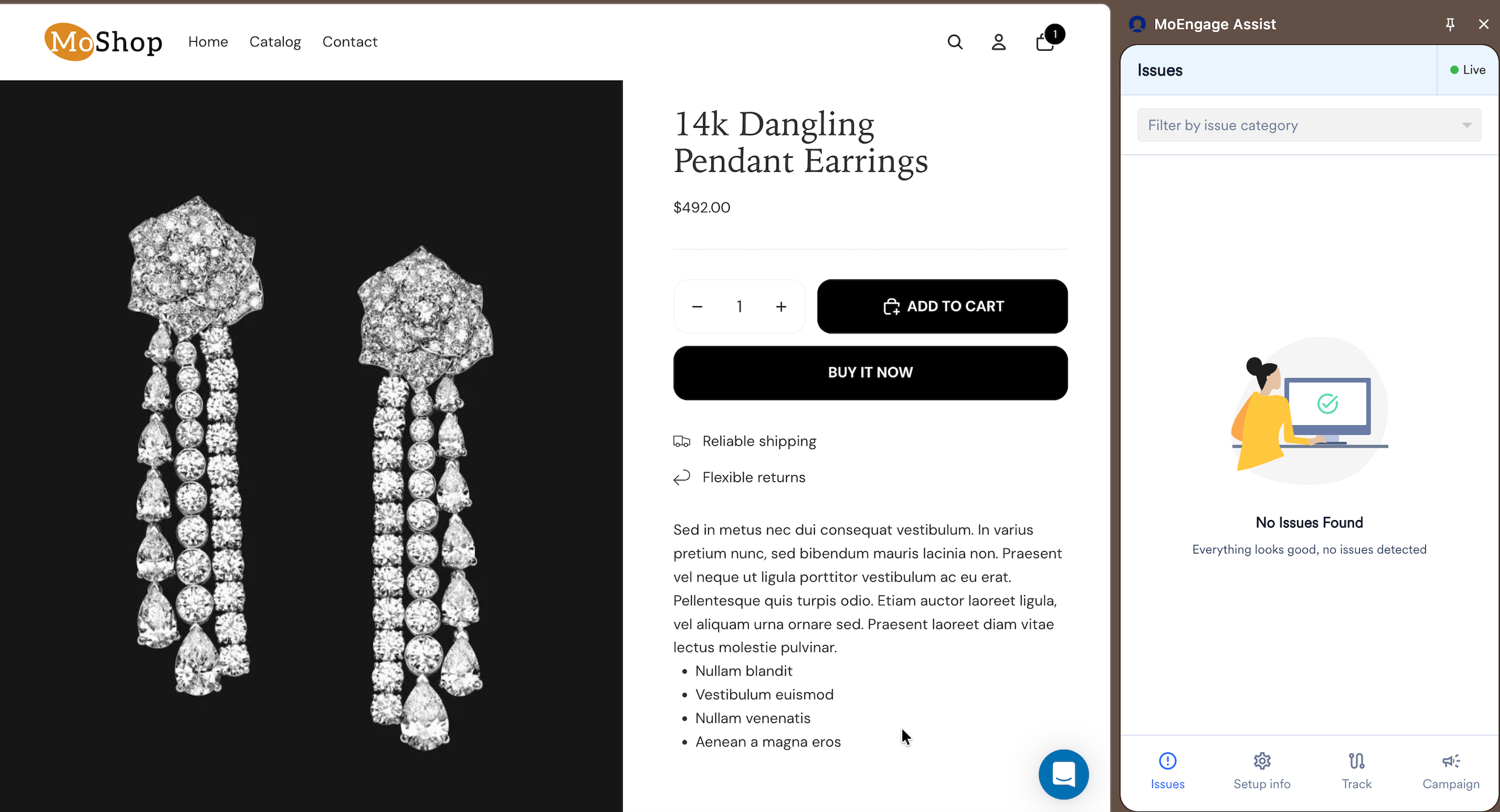
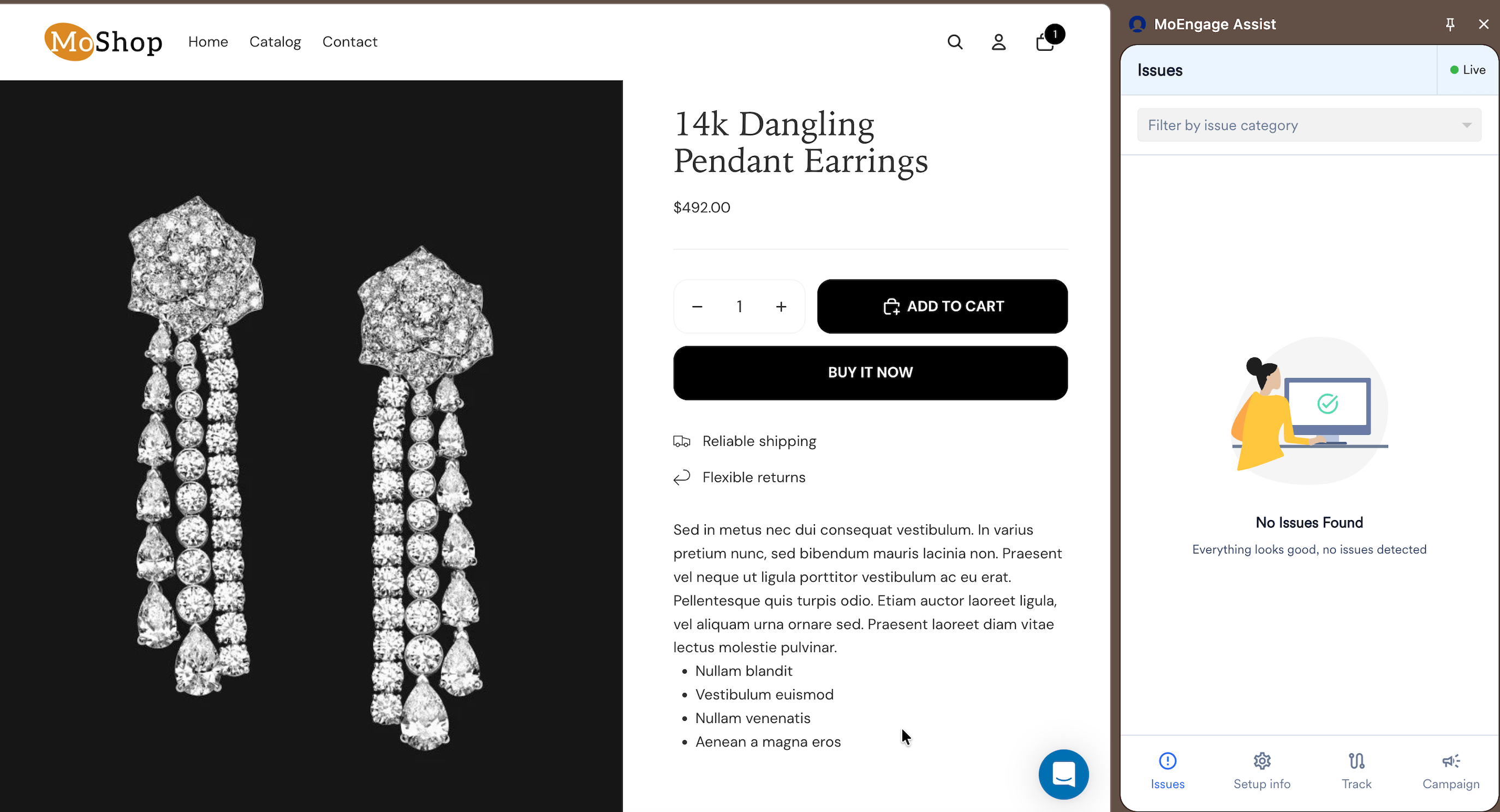
2. Open the **MoEngage Assist** Chrome extension on your storefront. If the SDK loads successfully, the extension icon turns blue and shows a green **Live** status. Click the icon to open the panel, which displays **No Issues Found** under the **Issues** tab.
 To resolve SDK load failures, perform the following checks:
* In your Shopify admin, open **Apps** > **MoEngage** > **App embed settings**. Un-save and then re-save the app embed block. This action re-triggers the script injection and resolves most cases where the SDK fails to load.
* If the icon is still not blue after you re-save, open the browser developer console and check for JavaScript errors on the page. SDK load failures appear here.
To resolve SDK load failures, perform the following checks:
* In your Shopify admin, open **Apps** > **MoEngage** > **App embed settings**. Un-save and then re-save the app embed block. This action re-triggers the script injection and resolves most cases where the SDK fails to load.
* If the icon is still not blue after you re-save, open the browser developer console and check for JavaScript errors on the page. SDK load failures appear here.
 * If the issue persists, contact MoEngage support.
**Inconsistent setup steps can prevent SDK from loading**
The SDK does not load if you do not complete the integration steps in order. Before you raise a support ticket, confirm that you follow all steps in the Shopify setup article, including the save of the app embed block in your Shopify theme settings.
## Step 2: Validate Event Track
To trigger and confirm events, perform the following steps:
To validate the **Product Viewed** event, perform the following steps:
1. Navigate to any product page on your storefront.
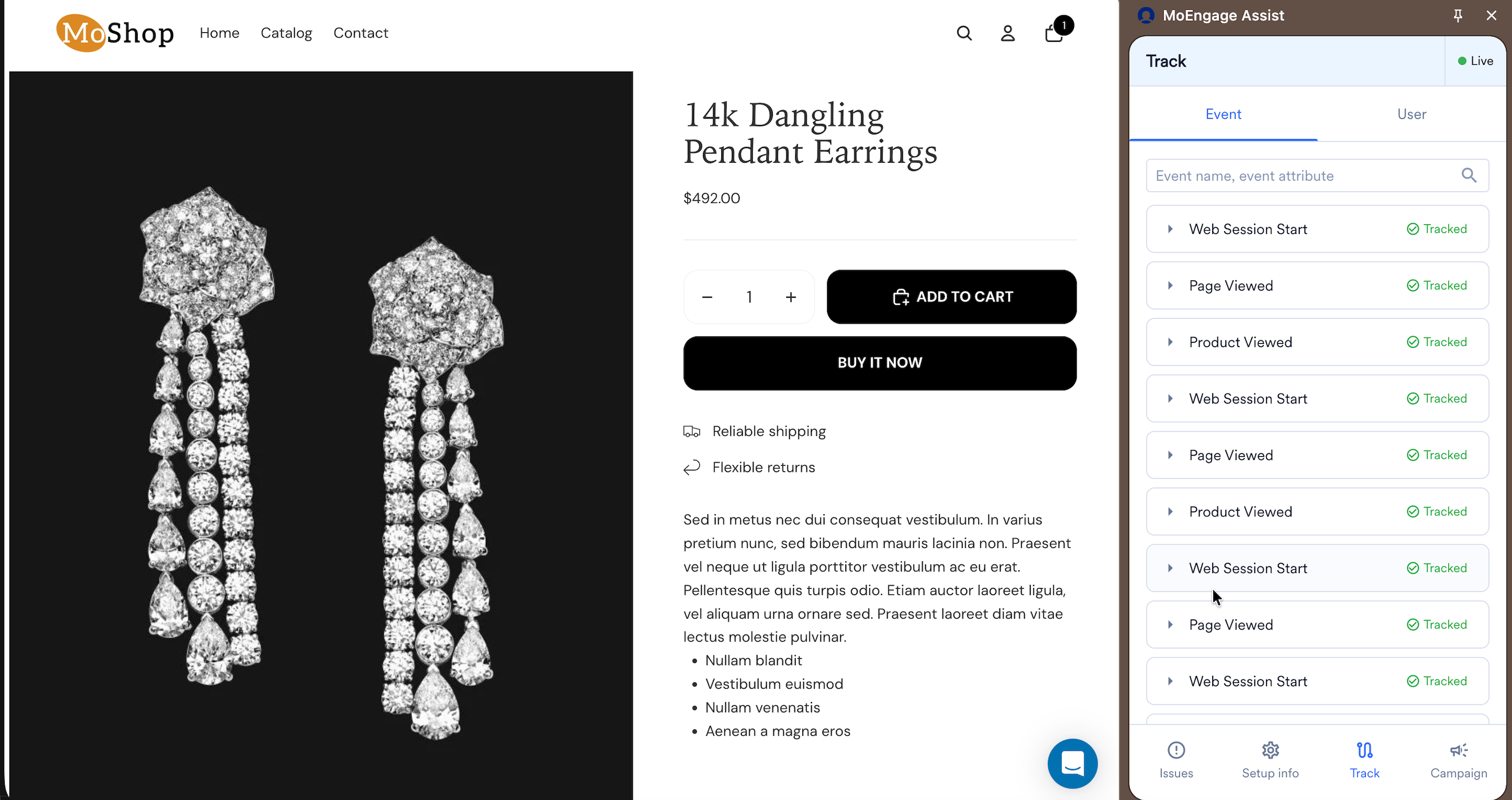
2. Confirm that the **Product Viewed** event appears in the **MoEngage Assist** extension event stream under the **Track** tab with a green **Tracked** status.
* If the issue persists, contact MoEngage support.
**Inconsistent setup steps can prevent SDK from loading**
The SDK does not load if you do not complete the integration steps in order. Before you raise a support ticket, confirm that you follow all steps in the Shopify setup article, including the save of the app embed block in your Shopify theme settings.
## Step 2: Validate Event Track
To trigger and confirm events, perform the following steps:
To validate the **Product Viewed** event, perform the following steps:
1. Navigate to any product page on your storefront.
2. Confirm that the **Product Viewed** event appears in the **MoEngage Assist** extension event stream under the **Track** tab with a green **Tracked** status.
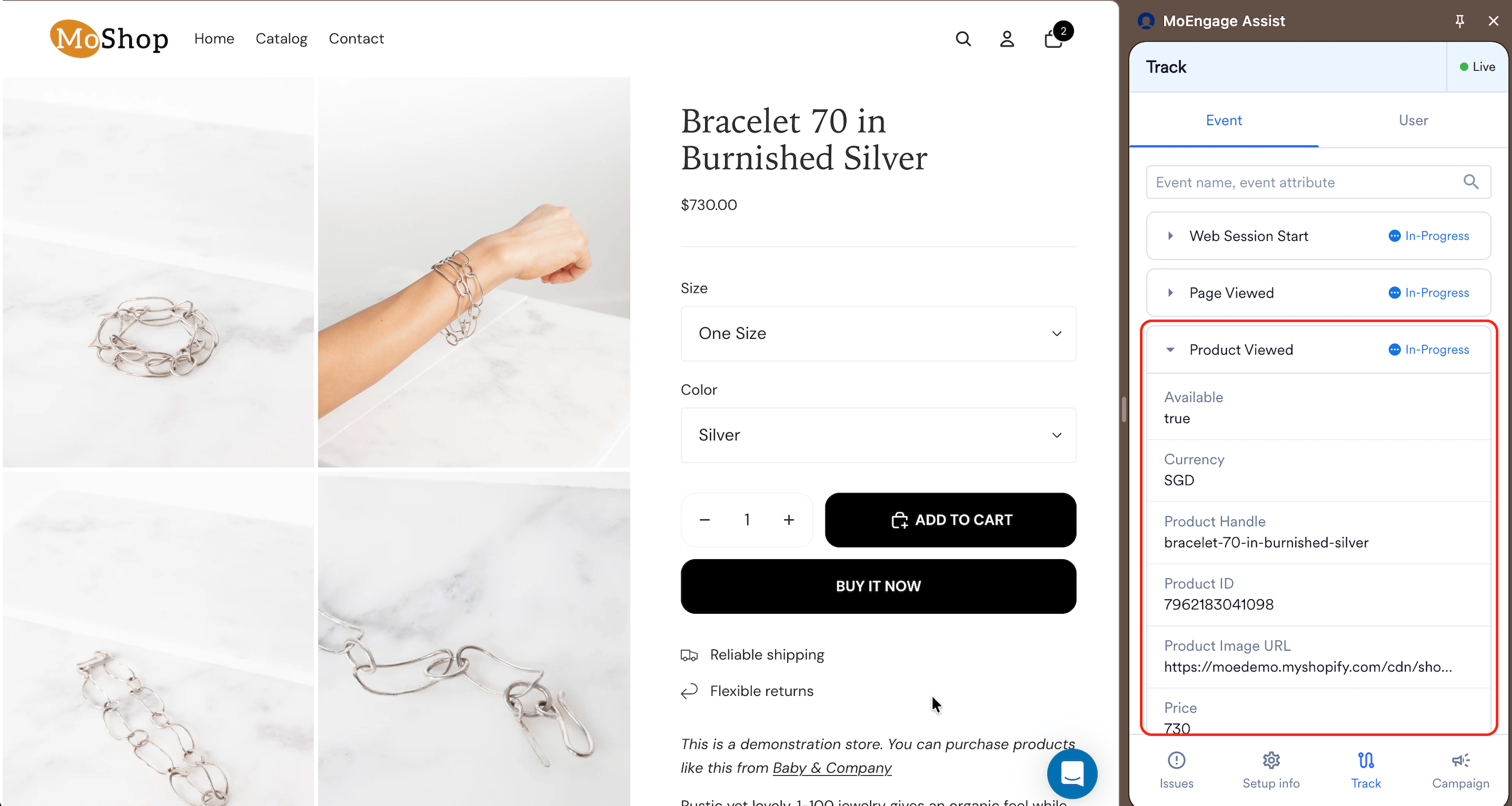
 3. Click the drop-down arrow on the event row inside the extension to expand and verify that key attributes—such as price, currency, and product ID—are tracked with correct values.
 **Product Viewed only triggers on default product template**
This event tracks by using the default Shopify product page template. If your store uses custom product page templates, the event is not triggered on those pages by default.
To validate the **Add to Cart** event, perform the following steps:
1. From any product page, add an item to your cart.
2. Confirm that the **Shopify - Add to Cart** event appears in the **MoEngage Assist** panel.
**Which Add to Cart event is used in campaigns?**
MoEngage tracks **Add to Cart** via both the Web SDK and a Shopify webhook. These two events have different names, and their counts do not match. Shopify counts sessions that result in a cart creation, while MoEngage counts the number of times the **Add to Cart** action occurs. Always use the webhook version (**Shopify - Add to Cart**) for segment and campaign triggers. For more information, refer to the [**Events and User Data Track**](/docs/developer-guide/ecommerce-platforms/shopify/events-and-user-data-tracking) article.
## Verify Cart Token User Attribute
To verify the cart token, perform the following steps:
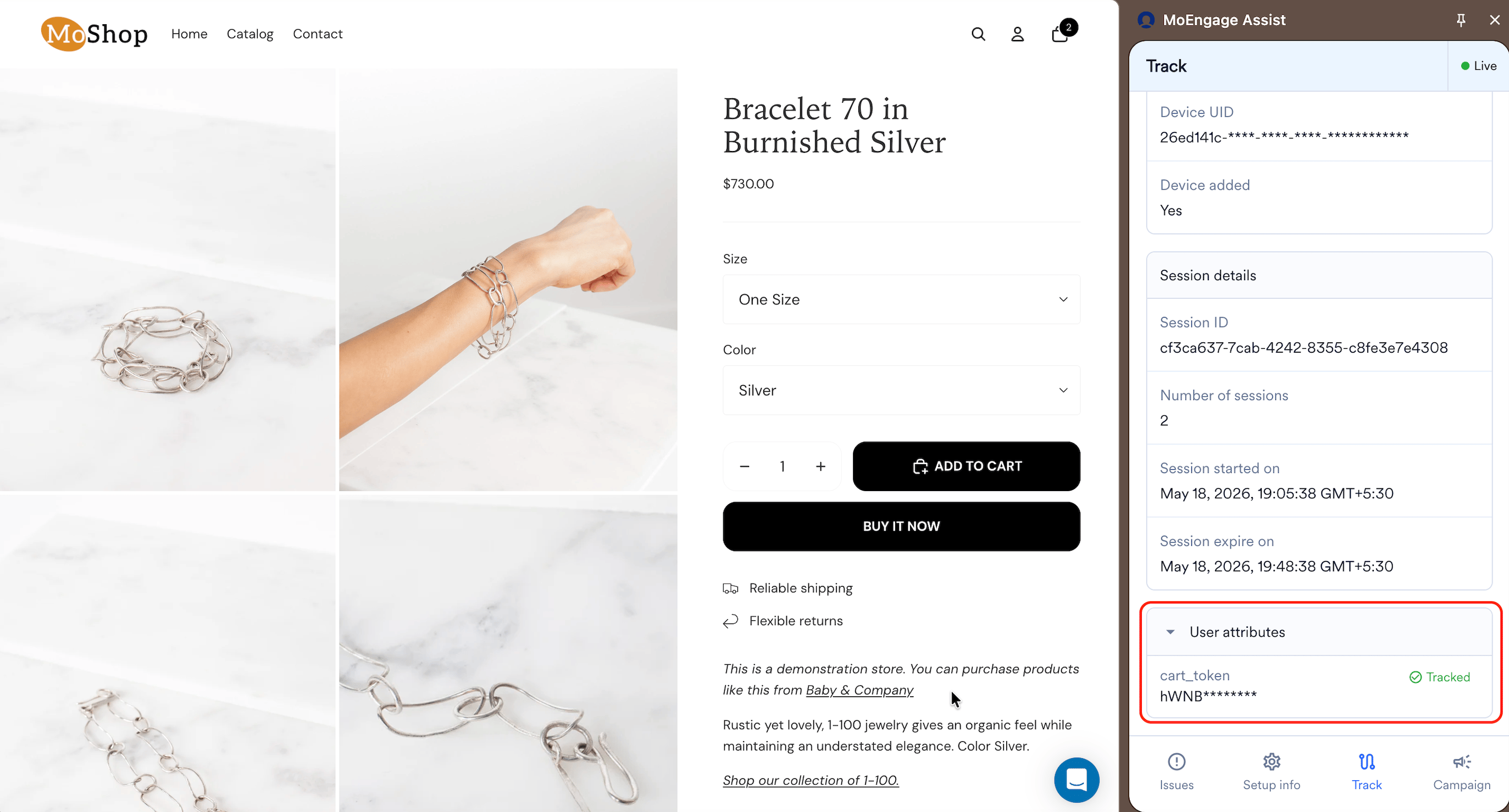
1. While you validate **Product Viewed** and **Add to Cart**, confirm that the **cart\_token** user attribute is set on the user profile.
2. Verify that the **cart\_token** user attribute is listed and marked as **Tracked** inside your browser extension attributes dashboard. The cart token is required for abandoned cart flows to function correctly.
**Product Viewed only triggers on default product template**
This event tracks by using the default Shopify product page template. If your store uses custom product page templates, the event is not triggered on those pages by default.
To validate the **Add to Cart** event, perform the following steps:
1. From any product page, add an item to your cart.
2. Confirm that the **Shopify - Add to Cart** event appears in the **MoEngage Assist** panel.
**Which Add to Cart event is used in campaigns?**
MoEngage tracks **Add to Cart** via both the Web SDK and a Shopify webhook. These two events have different names, and their counts do not match. Shopify counts sessions that result in a cart creation, while MoEngage counts the number of times the **Add to Cart** action occurs. Always use the webhook version (**Shopify - Add to Cart**) for segment and campaign triggers. For more information, refer to the [**Events and User Data Track**](/docs/developer-guide/ecommerce-platforms/shopify/events-and-user-data-tracking) article.
## Verify Cart Token User Attribute
To verify the cart token, perform the following steps:
1. While you validate **Product Viewed** and **Add to Cart**, confirm that the **cart\_token** user attribute is set on the user profile.
2. Verify that the **cart\_token** user attribute is listed and marked as **Tracked** inside your browser extension attributes dashboard. The cart token is required for abandoned cart flows to function correctly.
 ## Third-Party Checkout Partners
To manage event track for checkout partners, review the following information:
MoEngage tracks checkout events by using the Shopify default checkout process. If your store uses a third-party checkout partner—such as **GoKwik**, **Razorpay Magic Checkout**, or a similar accelerated checkout tool—the behavior below occurs:
| Scenario | What happens |
| ---------------------------------- | -------------------------------------------------------------------------------------------------------------------------------------------------------------------------------------------------- |
| SDK events after checkout initiate | Shopify does not allow Web SDK events to trigger after a third-party checkout flow initiates. **On-Site Messaging (OSM)** campaigns that depend on SDK events cannot trigger at or after checkout. |
| Checkout page URL in events | Where there is no URL, the **checkout page URL** attribute is absent from related events. |
| Add to Cart SDK event | If a third-party checkout partner intercepts the cart action, the **Add to Cart** SDK event might not trigger. The webhook version of the event is unaffected. |
**Webhook-based events unaffected**
**Order Placed** and other webhook-based events continue to track normally regardless of which checkout partner you use. This impact is limited to SDK-based event track at and after the checkout stage.
## Heavily Customized Shopify Themes
To manage event track on custom themes, review the following information:
The MoEngage Web SDK integrates with Shopify's default storefront workflow. Heavily customized Shopify themes sometimes modify this workflow, preventing events from firing even when the SDK loads successfully. If events do not appear in the plugin, check whether your store uses a custom theme that overrides standard Shopify page templates or cart behavior. If it does, contact support to determine the additional implementation required.
**Validate on your live storefront**
If your store uses a heavily customized theme, validate event track on the live storefront before you launch campaigns. Custom theme behavior in a development preview can differ from the published store.
## Troubleshoot: If Events Do Not Appear In the Plugin
To troubleshoot event track issues, perform the following steps in order before you raise a support ticket:
1. Confirm that the MoEngage app is installed on the correct Shopify store and that the workspace ID entered during setup matches your active MoEngage workspace.
2. If you recently generated new API keys, wait 10 minutes before you test. Newly generated keys take up to 10 minutes to activate.
3. Check that the app embed block is saved in your Shopify theme settings. Go to **Apps** > **MoEngage** > **App embed settings**, un-save and re-save the embed block, and then test again.
4. Check whether your store uses a custom theme or a third-party checkout partner and review the relevant sections on this page: [**Third-Party Checkout Partners**](#third-party-checkout-partners) and [**Heavily Customized Shopify Themes**](#heavily-customized-shopify-themes).
5. Open the browser developer console on the product or cart page and check for JavaScript errors. SDK load failures appear here.
If none of the above actions resolve the issue, contact MoEngage support. Include your workspace ID, the specific event that is not firing, the test page URL, and whether your store uses a custom theme or a third-party checkout partner.
For more information, see the [FAQs](/docs/developer-guide/ecommerce-platforms/shopify/faqs).
## Third-Party Checkout Partners
To manage event track for checkout partners, review the following information:
MoEngage tracks checkout events by using the Shopify default checkout process. If your store uses a third-party checkout partner—such as **GoKwik**, **Razorpay Magic Checkout**, or a similar accelerated checkout tool—the behavior below occurs:
| Scenario | What happens |
| ---------------------------------- | -------------------------------------------------------------------------------------------------------------------------------------------------------------------------------------------------- |
| SDK events after checkout initiate | Shopify does not allow Web SDK events to trigger after a third-party checkout flow initiates. **On-Site Messaging (OSM)** campaigns that depend on SDK events cannot trigger at or after checkout. |
| Checkout page URL in events | Where there is no URL, the **checkout page URL** attribute is absent from related events. |
| Add to Cart SDK event | If a third-party checkout partner intercepts the cart action, the **Add to Cart** SDK event might not trigger. The webhook version of the event is unaffected. |
**Webhook-based events unaffected**
**Order Placed** and other webhook-based events continue to track normally regardless of which checkout partner you use. This impact is limited to SDK-based event track at and after the checkout stage.
## Heavily Customized Shopify Themes
To manage event track on custom themes, review the following information:
The MoEngage Web SDK integrates with Shopify's default storefront workflow. Heavily customized Shopify themes sometimes modify this workflow, preventing events from firing even when the SDK loads successfully. If events do not appear in the plugin, check whether your store uses a custom theme that overrides standard Shopify page templates or cart behavior. If it does, contact support to determine the additional implementation required.
**Validate on your live storefront**
If your store uses a heavily customized theme, validate event track on the live storefront before you launch campaigns. Custom theme behavior in a development preview can differ from the published store.
## Troubleshoot: If Events Do Not Appear In the Plugin
To troubleshoot event track issues, perform the following steps in order before you raise a support ticket:
1. Confirm that the MoEngage app is installed on the correct Shopify store and that the workspace ID entered during setup matches your active MoEngage workspace.
2. If you recently generated new API keys, wait 10 minutes before you test. Newly generated keys take up to 10 minutes to activate.
3. Check that the app embed block is saved in your Shopify theme settings. Go to **Apps** > **MoEngage** > **App embed settings**, un-save and re-save the embed block, and then test again.
4. Check whether your store uses a custom theme or a third-party checkout partner and review the relevant sections on this page: [**Third-Party Checkout Partners**](#third-party-checkout-partners) and [**Heavily Customized Shopify Themes**](#heavily-customized-shopify-themes).
5. Open the browser developer console on the product or cart page and check for JavaScript errors. SDK load failures appear here.
If none of the above actions resolve the issue, contact MoEngage support. Include your workspace ID, the specific event that is not firing, the test page URL, and whether your store uses a custom theme or a third-party checkout partner.
For more information, see the [FAQs](/docs/developer-guide/ecommerce-platforms/shopify/faqs).